Accounts
Contacts
Deals

Help

Getting started

Sign in, reset a forgotten password, and learn what Nexus holds.

Overview

Nexus is the customer relationship manager (CRM) for Experienced Craft Labs (ECL). A CRM is one shared place to keep track of the companies you work with, the people at those companies, and everything your team has done with them.

This article covers what Nexus holds, how to sign in, and what to do if you forget your password.
What is in Nexus

TermWhat it meansExample
AccountA company or organization you work with.Acme Sample Co (TEST)
ContactA person who works at one account.Jane Sample (TEST)
NoteA short written message saved on an account, contact, or deal."Called about the spring schedule."
TaskA to-do with an optional due date."Send follow-up (TEST)"
MeetingA record that you met with an account (in person, by phone, or by video).Phone meeting on 2026-10-01
OwnerThe Nexus user who is responsible for a record.You

Every account and contact has an Owner. Many screens use the owner to decide what you see first.

Sign in

You need a Nexus user before you can sign in. An admin creates it for you (see Settings and users).

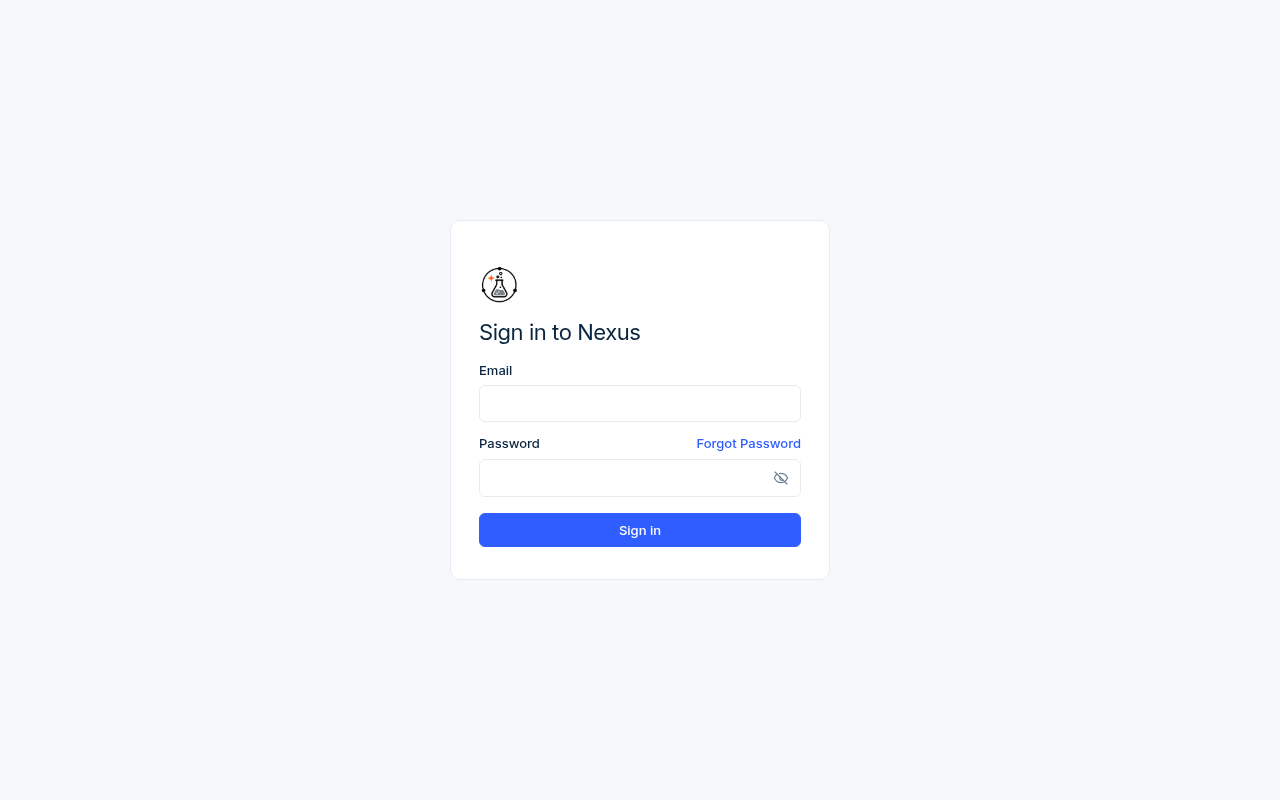
Sign in to Nexus
Sign in to Nexus
  1. Open Nexus in your web browser.
  2. On Sign in to Nexus, fill in Email.
  3. Fill in Password. Click the eye icon to show or hide what you typed.
  4. Click Sign in.

Nexus opens Home. You stay signed in on this browser until you sign out.

FieldWhat to enterExampleRequired?
EmailThe work email your admin used for your Nexus user.test@example.comYes
PasswordYour Nexus password.(your password)Yes

If Nexus sends you back to Sign in to Nexus, your session ended. Sign in again.

Forgot Password page

Forgot your password

  1. On the sign-in page, click Forgot Password (above the password box).
  2. Fill in Email.
  3. Click Send reset link.
  4. Nexus shows: "If an account exists for that email, we sent a reset link. Check your inbox."
  5. Open the email and click the link.
  6. On Set a new password, fill in New password and Confirm password.
  7. Click Update password.
  8. Nexus takes you back to sign in. Sign in with your new password.
FieldWhat to enterExampleRequired?
EmailThe email for your Nexus user.test@example.comYes
New passwordA new password, at least 8 characters.(8+ characters)Yes
Confirm passwordThe same new password again.(same as above)Yes

Tips:

  • If you see "This reset link is invalid or has expired.", click Request a new link and start again.
  • If you see "Passwords do not match.", type the same password in both boxes.
  • To get back to the sign-in page, click Back to sign in.

Sign out

Do one of these:

  • Click the sign-out icon (an arrow leaving a door) at the far right of the top bar. Hover over it to see Sign out.
  • Click your name in the top bar to open your profile, then click Sign out.

Loading…