An account is a company or organization you work with, such as a customer, a prospect, a partner, or a vendor. Every contact belongs to one account.
Accounts
Companies: the list, filters, the preview panel, adding an account, and the account record.
Overview
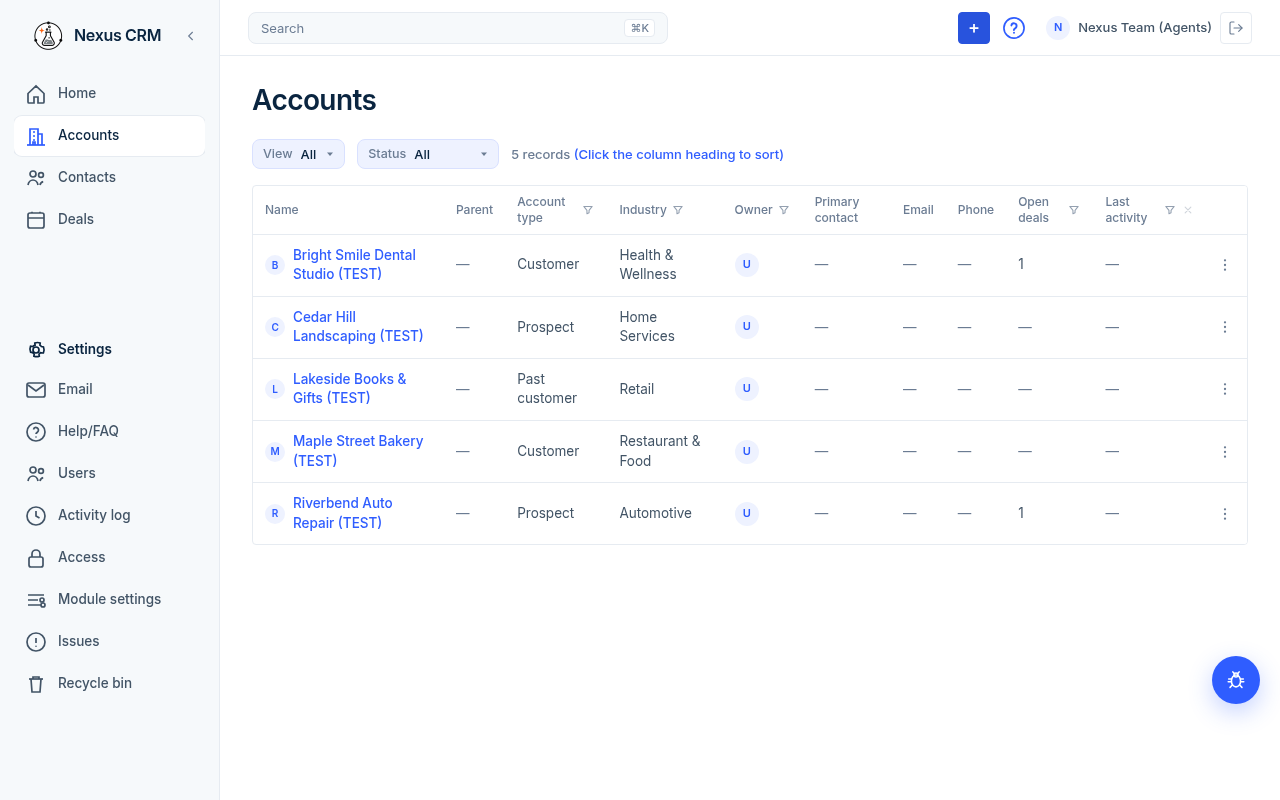
Open the Accounts list
- Click Accounts in the left menu.
### Columns
| Column | What it shows |
|---|---|
| Name | The account name and logo. Click the name to open the account. |
| Parent | The parent account, if this account belongs to a bigger one. |
| Account type | For example Prospect, Customer, Partner, or Vendor. |
| Industry | The kind of business. |
| Owner | The photo (or first letter) of the Nexus user who owns the account. Hover to see the name. U means Unassigned. |
| Primary contact | The main person at the account. |
| The primary contact's email. | |
| Phone | The primary contact's phone. |
| Open deals | To follow: see Deals. |
| Last activity | The date of the latest activity. |
Email and Phone in this list belong to the Primary contact, not to the account.
### Filter the list
- Status above the table: All, Active, Inactive, or Archived. It starts at All.
- Funnel icons on Account type, Industry, Owner, Open deals, and Last activity.
- Last activity choices: This week, This month, Has activity, No activity.
- A saved view named Customers shows accounts with Account type Customer.
See Find your way around for sorting, saved views, and clearing filters.
If the list is empty you see "No accounts yet." and an Add account button. If your filters hide every row you see "No accounts match your filters." and a Clear filters button.
### Preview an account
Click a row (not the name) to open a preview panel on the right. It shows Owner, Account type, Industry, Lead source, Primary contact, Parent account, Phone, Website, Status, Last activity, and the account's People.
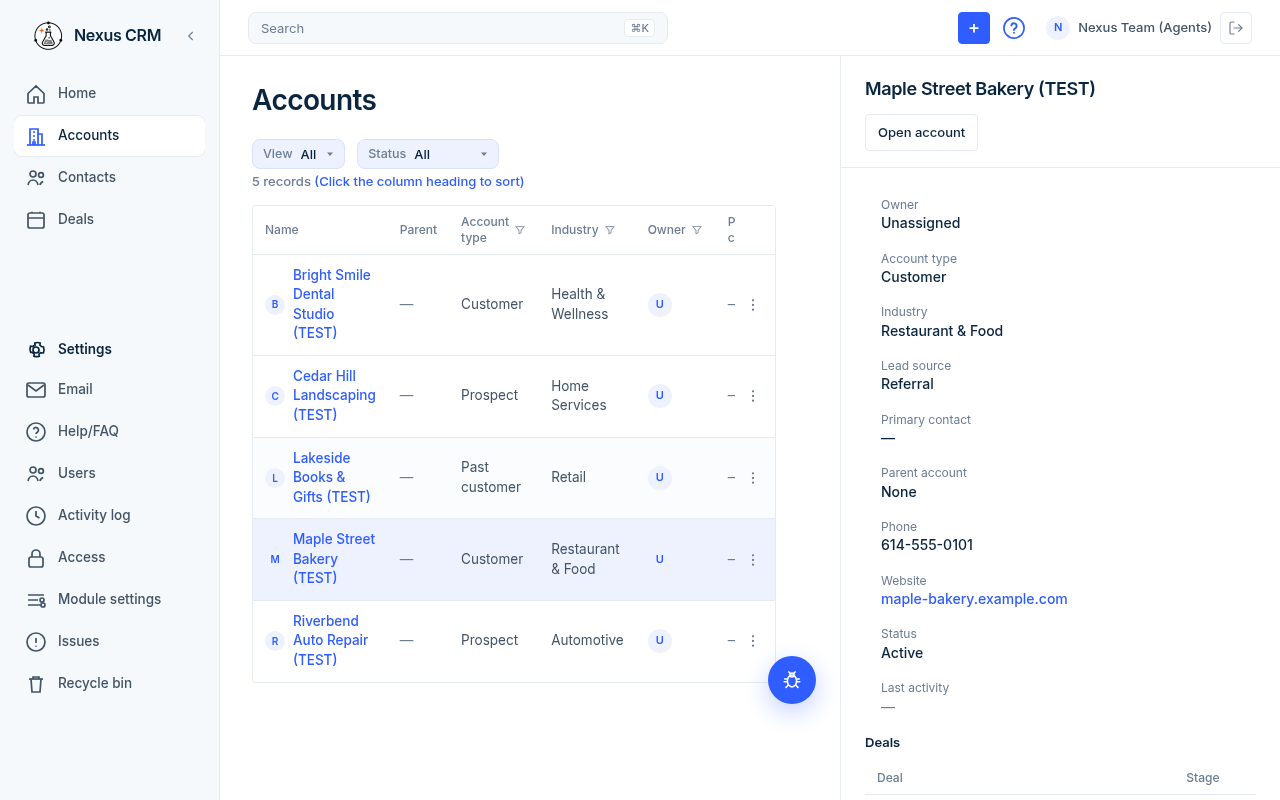
Click Open account to open the full record. Click the same row again to close the panel.
Add an account
- Click + in the top bar.
- Click Account. The Add account panel opens.
- Fill in the fields (see the table below). Only Name is required.
- Click Add account. Click Cancel to close without saving.
- Nexus opens the new account and asks Create a deal? Click No to skip. (Deals are to follow: see Deals.)
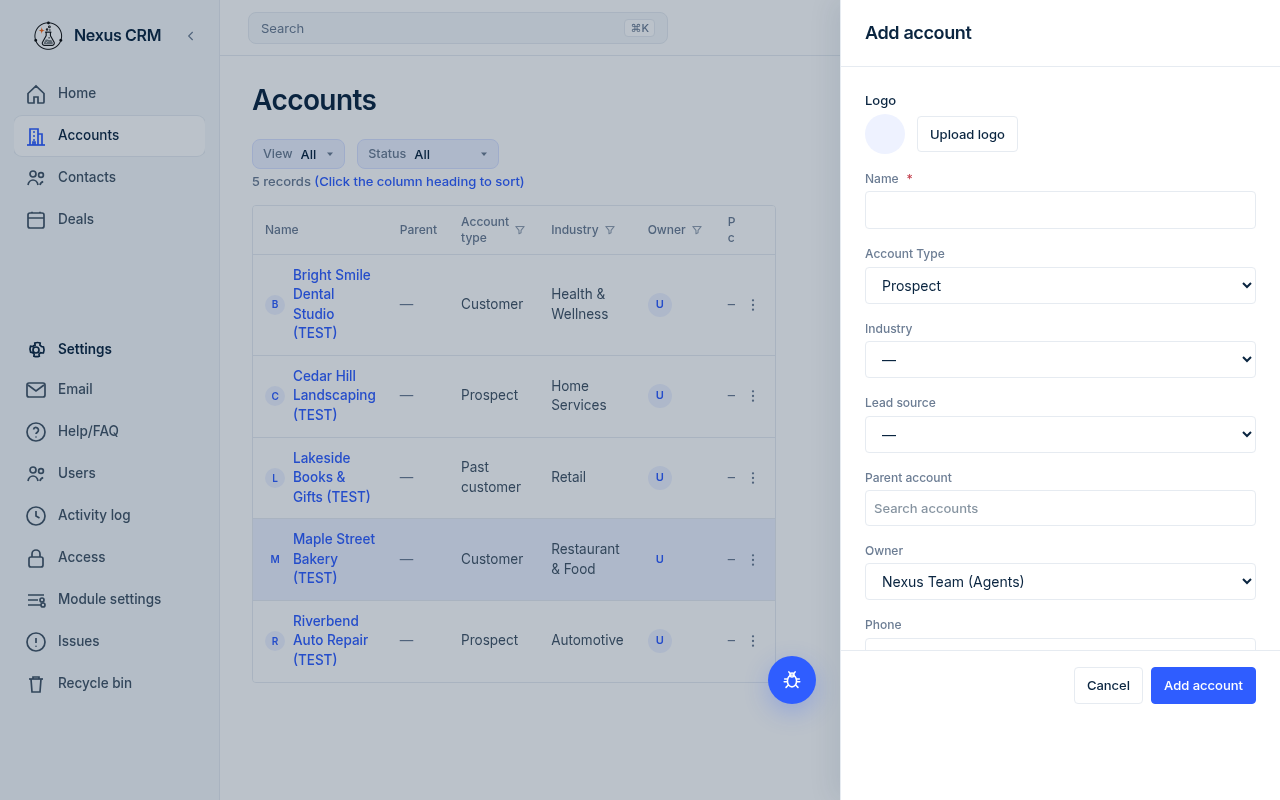
| Field | What to enter | Example | Required? |
|---|---|---|---|
| Logo | Click Upload logo and pick an image. | acme-test-logo.png | No |
| Name | The company name. | Acme Sample Co (TEST) | Yes |
| Account Type | Pick from the list. Starts on the first type in the list. | Prospect | Yes (always has a value) |
| Industry | Pick from the list, or leave as —. | Professional Services | No |
| Lead source | How you found this account. | Referral | No |
| Parent account | Type part of a name, then pick the account this one belongs to. | Acme Holdings (TEST) | No |
| Owner | The Nexus user responsible. Starts as you. | (your name) | No |
| Phone | A 10-digit US phone number. | (555) 010-0100 | No |
| Website | The company website. | https://example.com | No |
Phone and website rules:
- Phone must have 10 digits (a leading 1 is fine). Nexus saves it as (555) 010-0100. Otherwise you see "Enter a 10-digit US phone number."
- Website must be a real web address like example.com. If you leave off
https://, Nexus adds it.
The lists for Account Type, Industry, and Lead source come from Settings → Module settings. Only admins can change them.
The account record
The top shows the logo, the account name, and the Accounts breadcrumb.
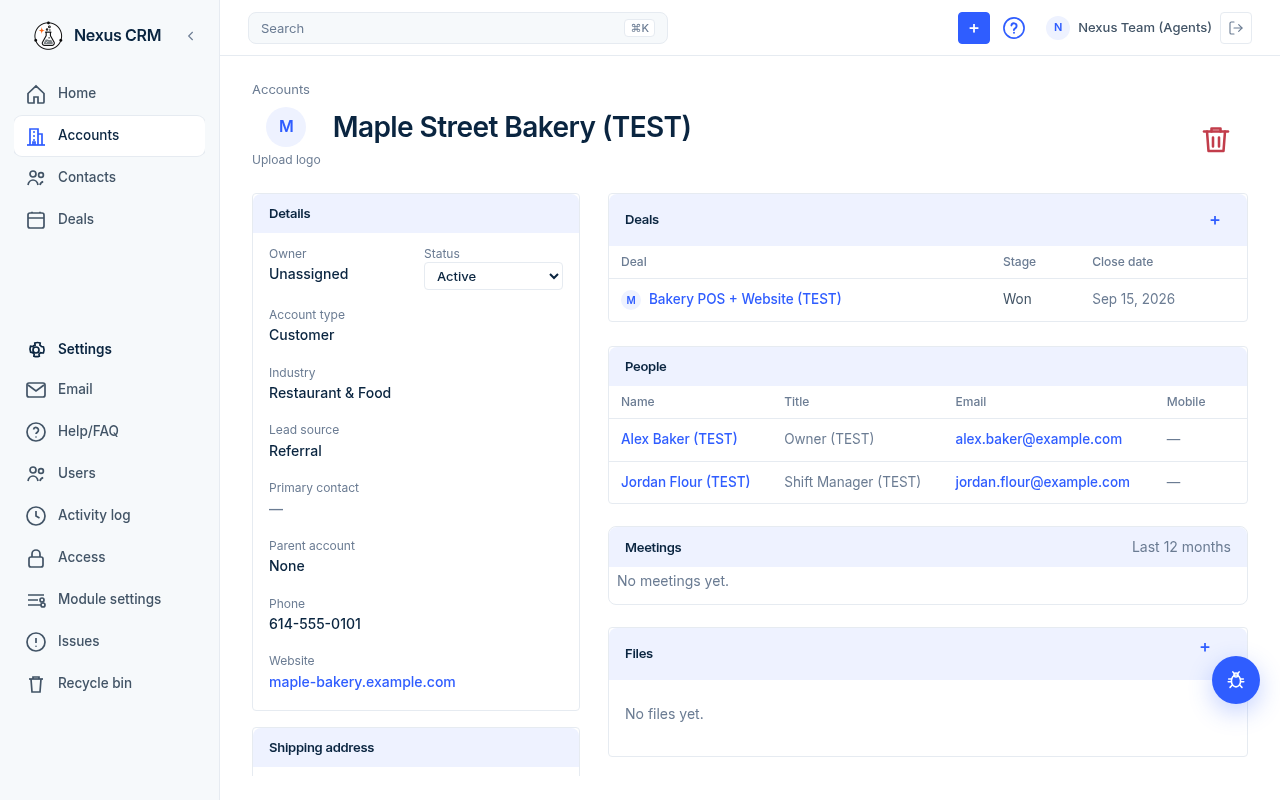
- Change the name: click the name, edit it, then click the check mark.
- Change the logo: click the logo (hint: Upload logo) and pick an image.
- Delete: click the red trash icon (Delete account), then Delete account again to confirm.
### Details
Click any value to edit it. Click the check mark to save or the X to cancel.
| Field | What it is | Example |
|---|---|---|
| Owner | The Nexus user responsible for this account. | (your name) |
| Status | A drop-down: Active, Inactive, or Archived. Changes save as soon as you pick. | Active |
| Account type | Kind of relationship. | Customer |
| Industry | Kind of business. | Retail |
| Lead source | Where the account came from. | Website |
| Primary contact | Pick one of this account's contacts. | Jane Sample (TEST) |
| Parent account | The bigger account this one belongs to. | Acme Holdings (TEST) |
| Phone | 10-digit US phone. | (555) 010-0100 |
| Website | Web address. Click it to open the site in a new tab. | https://example.com |
### Shipping address and Billing address
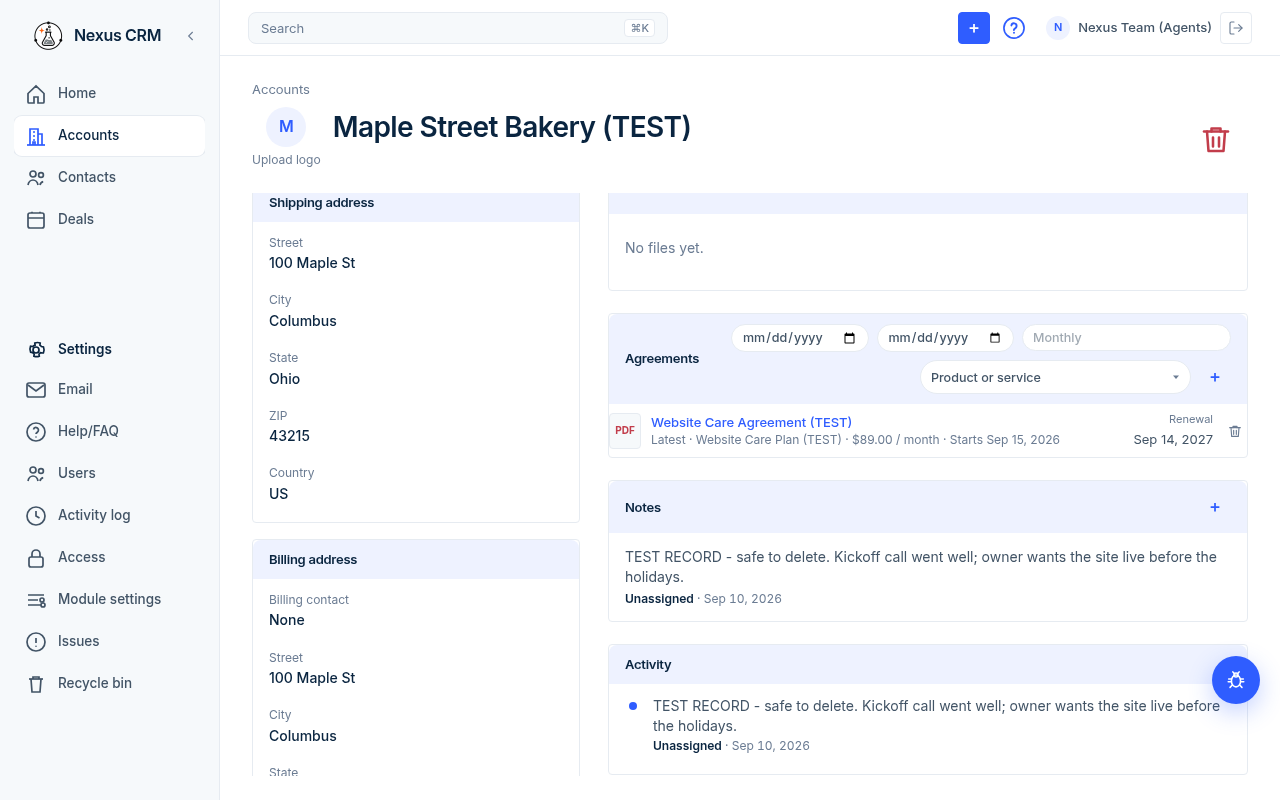
Each card has Street, City, State, ZIP, and Country. State starts on Ohio and Country on US. Click a value to change it.
The Billing address card also has Billing contact. Pick one of the account's active contacts, or None.
| Field | What to enter | Example | Required? |
|---|---|---|---|
| Street | Street address. | 123 Test Street | No |
| City | City. | Sampletown | No |
| State | Pick a US state. | Ohio | No |
| ZIP | ZIP code. | 00000 | No |
| Country | Country. | US | No |
| Billing contact | A contact at this account who gets bills. | Jane Sample (TEST) | No |
### Right side of the record
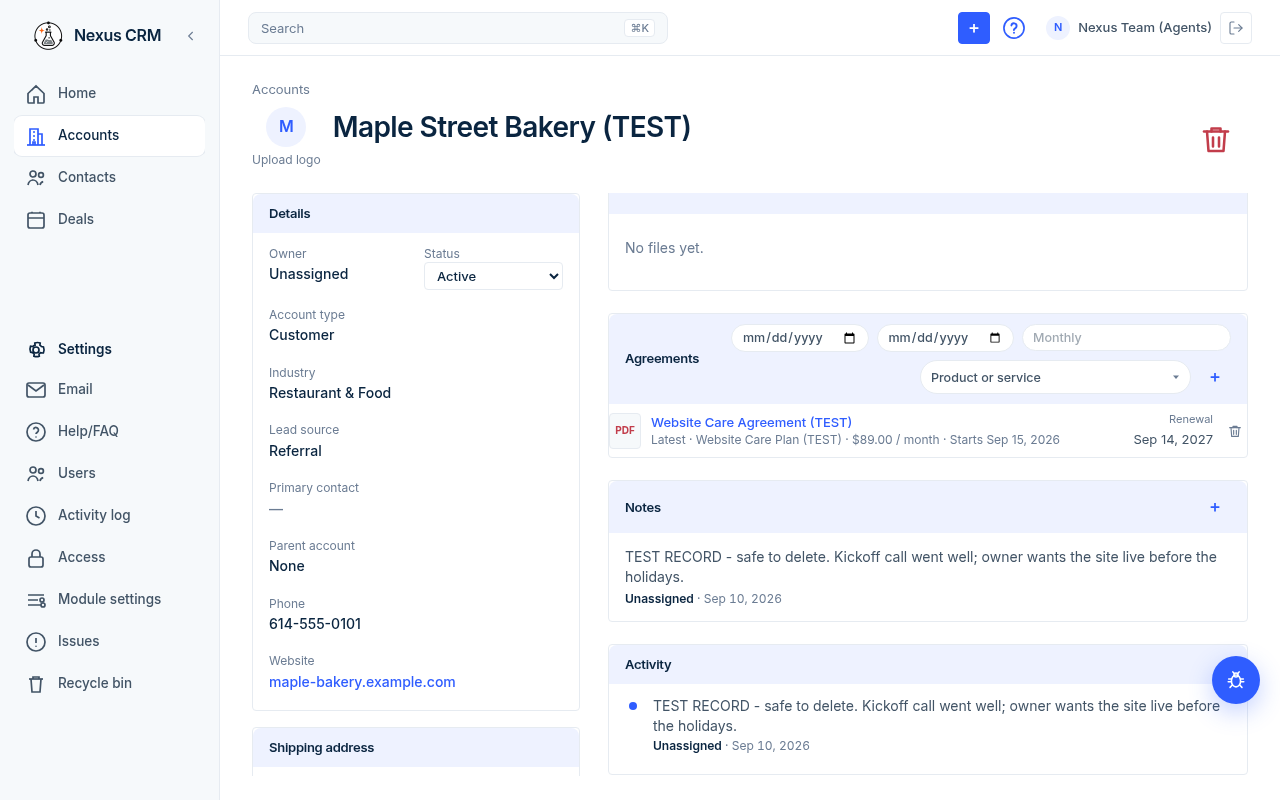
| Card | What it holds |
|---|---|
| Deals | To follow: see Deals. |
| People | Active contacts at this account: Name, Title, Email, Mobile. Click a name to open the contact. |
| Meetings | Meetings on this account per month, Last 12 months. Shows "No meetings yet." when empty. |
| Files | Documents attached to the account. See Notes, tasks, meetings, and files. |
| Agreements | To follow: see Agreements. |
| Notes | Notes on this account. Click + (Add note) on the card to add one. |
| Activity | Everything logged on the account, newest first. |
If the account is Inactive or Archived, its people show that status next to their names.
Status: Active, Inactive, Archived
- Active accounts show everywhere.
- Inactive and Archived accounts can't be picked when you add a new contact.
- Only Active accounts appear under Last contacts on Home.
Who can do what
Admins can see, edit, and delete every account. Members follow Settings → Access: each action is set to All accounts or only accounts they Own. See Settings and users.