Every Nexus screen has the same frame: a menu on the left, a bar across the top, and the page in the middle. This article explains each part, the Home page, and how lists and records work.
Find your way around
The left menu, the top bar, Home, lists, records, and the bug button.
Overview
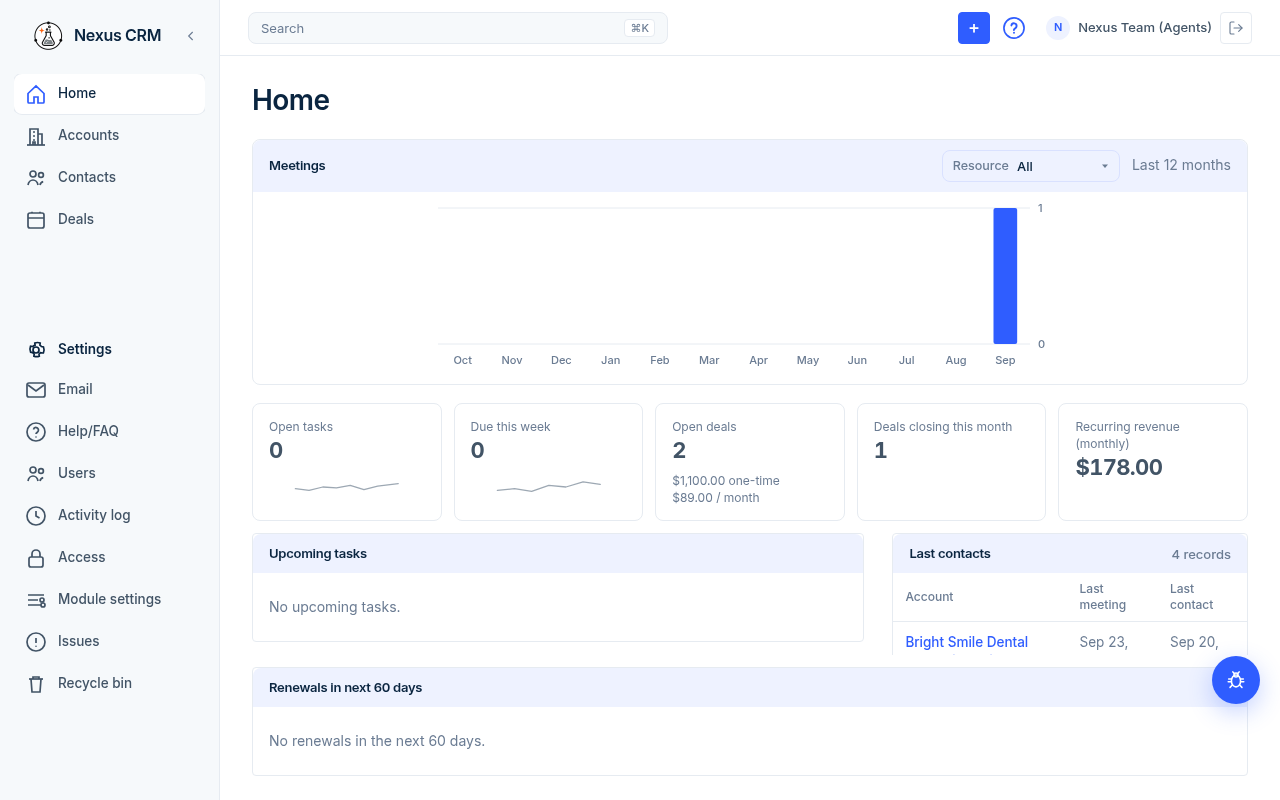
The left menu
The top of the menu shows the ECL logo and Nexus CRM.
| Menu item | What it opens |
|---|---|
| Home | Your own work: meetings, tasks, and accounts to follow up with. |
| Accounts | The list of companies. |
| Contacts | The list of people. |
| Deals | To follow: see Deals. |
| Settings | A heading with settings pages under it. See Settings and users. |
Under Settings, everyone sees Email, Issues, and Recycle bin. Admins also see Help/FAQ, Users, Activity log, Access, and Module settings.
### Collapse the menu
- Click the arrow button next to Nexus CRM (its hover name is Collapse navigation).
- The menu shrinks to icons only. Hover over an icon to see its name.
- Click the arrow again (Expand navigation) to bring the names back.
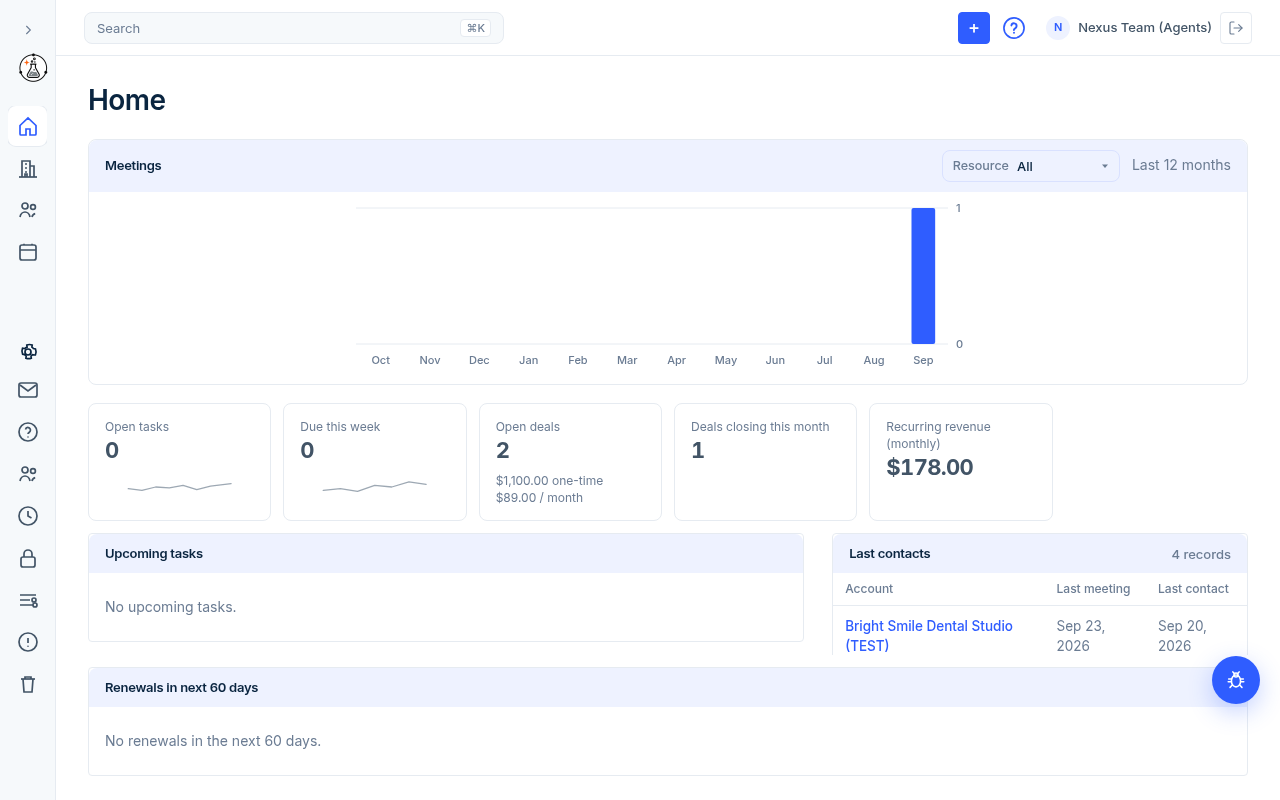
Nexus remembers your choice on this browser.
The top bar
| Part | What it does |
|---|---|
| Search box | Finds accounts, contacts, and deals as you type. Press ⌘K on a Mac or Ctrl+K on Windows to jump to it. See Search and quick create. |
| + button | Opens the Create menu for new records, notes, tasks, and meetings. |
| ? button | Opens Help, with Help articles and Frequently asked questions. |
| Your name and photo | Opens your profile. See Your profile and passwords. |
| Sign-out icon | Signs you out (Sign out). |
If an admin is acting as another user, a bar under the top bar reads Acting as and the person's name, with a Stop button.
Home
Home shows work for one person at a time. That person is called the Resource.
### Pick whose work you see
- On Home, find Resource at the top of the Meetings card.
- Pick a person, or pick All to see everyone.
Resource starts as you when you own accounts. If you don't own any, it starts at All. The list also includes Unassigned for records with no owner. The choice changes every card on Home.
### What each part shows
| Part | What it shows |
|---|---|
| Meetings | Bars for the Last 12 months on accounts owned by the Resource. Meetings is blue. Emails is orange and counts each Gmail message once, sent or received. Hover a month for both counts. |
| Open tasks | How many tasks for the Resource are not done. |
| Due this week | How many of those open tasks are due this week. |
| Upcoming tasks | Open tasks sorted by due date, with Task, Related, and Due. Click a name in Related to open that record. |
| Last contacts | Active accounts with an Account type of Prospect or Customer that the Resource owns. Columns: Account, Last meeting, Last contact. A dash (—) means no date yet. |
Home also shows Open deals, Deals closing this month, Recurring revenue (monthly), and Renewals in next 60 days. Those are to follow: see Deals and Agreements.
Lists
Accounts and Contacts open as lists (tables). They work the same way.
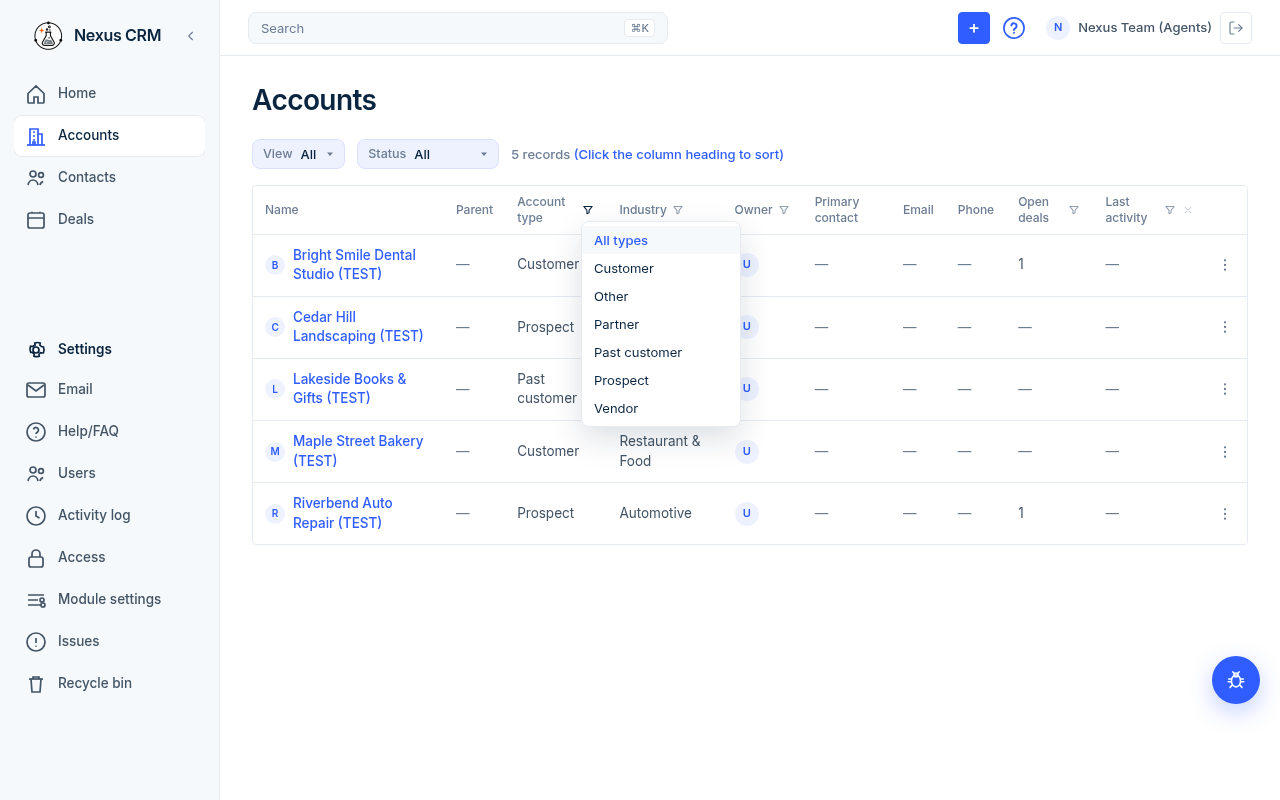
- Sort: click a column heading. Click again to flip the order.
- Filter by status: use Status above the table (All, Active, Inactive, Archived).
- Filter by column: click the funnel icon next to a column heading, then pick a value.
- Clear filters: click the X icon at the end of the heading row.
- Count: the text above the table (for example, 5 records) counts only the rows that match your filters. Next to it Nexus reminds you: (Click the column heading to sort).
- Row menu: click the three-dot button at the end of a row, then Delete. You only see it if you are allowed to delete that record.
### Save a view
A view is a saved set of filters with a name.
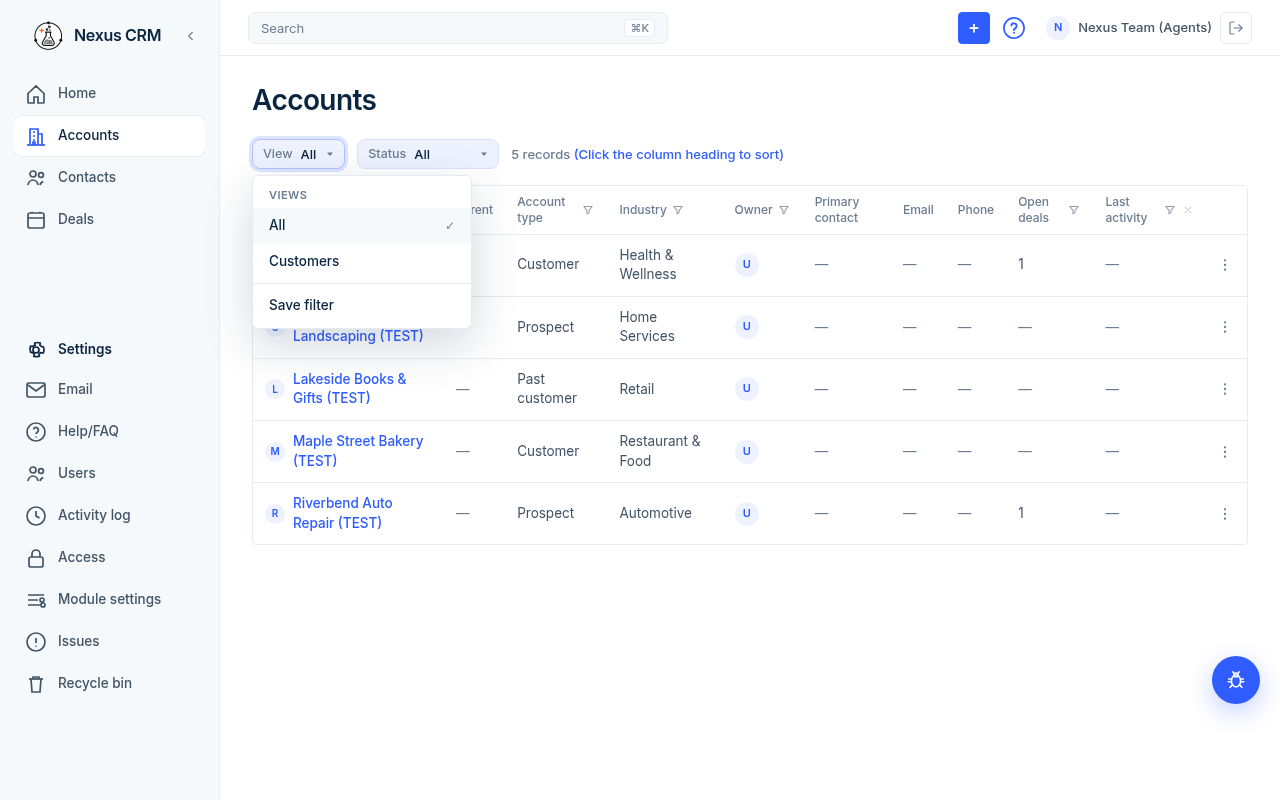
- Set the filters you want.
- Click View above the table.
- Click Save filter.
- Type a name, then click the check mark (or press Enter).
To use a view, click View and pick its name. Pick All to go back to no filters. When a saved view is on, the View menu also shows Rename, Update (save the current filters into it), and Delete.
Saved views are kept in this browser only. They do not follow you to another computer.
Records
A record is one account or one contact on its own page.
- Breadcrumb: the small link above the name (for example, Accounts) takes you back to the list.
- Edit a field: click the value. Change it, then click the check mark (Save) or press Enter. Click the X (Cancel) or press Escape to undo.
- Fields you can't change: if you don't have edit access, values show as plain text.
- Delete: click the red trash icon at the top right of the record, then confirm.
There is no Edit button. You edit in place.
### About deleting
Deleted records move to Settings → Recycle bin. They cannot be restored. Deleting an account also deletes its contacts and deals.
Report a bug or send feedback
The round blue button with a bug icon, in the bottom-right corner, opens Report a bug or send feedback.
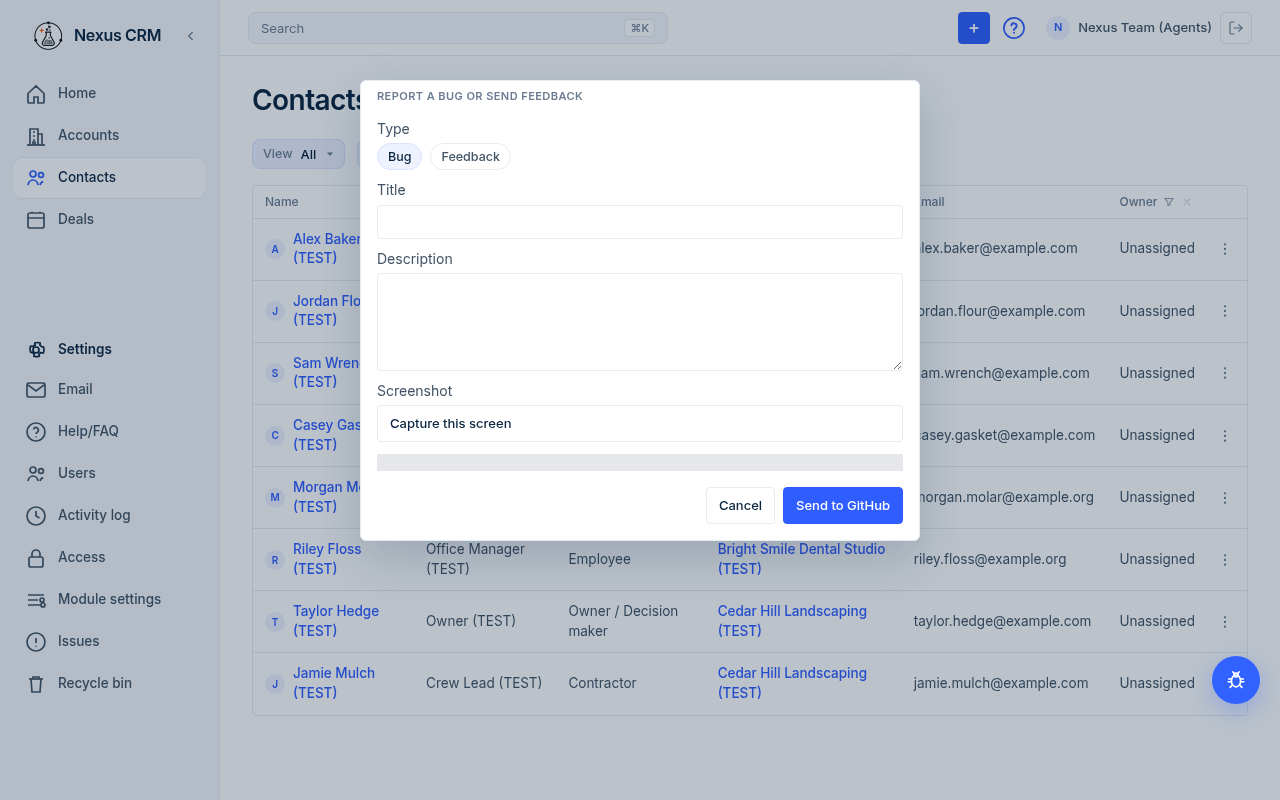
- Click the round bug button.
- Under Type, click Bug or Feedback.
- Fill in Title and Description.
- Optional: click Capture this screen to attach a picture of what you see.
- Click Send to GitHub.
- Click Done.
| Field | What to enter | Example | Required? |
|---|---|---|---|
| Type | Bug for something broken, Feedback for an idea. | Bug | Yes |
| Title | A short summary (3+ characters). | Search misses (TEST) contact | Yes |
| Description | What you did and what happened (3+ characters). | Typed "Sample" and saw No matches. | Yes |
| Screenshot | Optional picture of the current screen. | (captured screen) | No |
You can follow reports under Settings → Issues.
Nexus opens each report as a GitHub issue on GITHUB_ISSUES_REPO (default Daryl11/nexus). A repository whose name is the previous product is refused. The server uses a fine-grained token with Issues read and write and no Contents access. An optional screenshot is stored in the private Supabase record-files bucket and opens in Nexus for signed-in admins. It is not committed to the repository. If GitHub is not configured, Settings → Issues says so instead of showing an error.