Accounts
Contacts
Deals

Help

Settings and users

Users and roles, Access, Module settings, Activity log, Issues, Recycle bin, and Help/FAQ.

Overview

Settings is a heading near the bottom of the left menu. The pages you can open sit under it. If you go to Settings directly, Nexus opens Email.

Settings pageWho sees itWhat it is for
EmailEveryoneConnect your own Gmail account. See Email.
Help/FAQAdminsEdit the articles and questions on the Help page.
UsersAdminsAdd teammates, set roles, turn users off.
Activity logAdminsSee sign-ins, adds, edits, and deletes.
AccessAdminsDecide what members can view, edit, and delete.
Module settingsAdminsEdit the pick lists used on records.
IssuesEveryoneBugs and feedback sent with the bug button.
Recycle binEveryoneA list of deleted records.

If a member opens an admin page by its web address, they see Admins only.

Roles: Admin and Member

Every user is an Admin or a Member.

AdminMember
See and change recordsAll recordsAs set on Access (All or Own)
Delete recordsAll recordsAs set on Access (All or Own)
Add users, change roles and statusYesNo
Act as another userYesNo
Set another user's password or send a reset linkYesNo
Edit pick lists, Access, Help/FAQYesNo

Own means the member is the Owner of the record (for notes, the person who wrote it).

Users

Open Settings → Users. Each row is one teammate, with Name, Email, Role, and Status.

Users page
Users page

### Add a user

  1. Click + (Add user) on the Users card.
  2. Under New user, fill in the fields.
  3. Click Add user. Click Cancel to stop.
  4. Nexus shows a message, for example "Invite sent to test@example.com."
FieldWhat to enterExampleRequired?
First nameTheir first name.JaneNo
Last nameTheir last name.Sample (TEST)No
EmailTheir work email. Must be new to Nexus.test@example.comYes
RoleMember or Admin. Starts as Member.MemberNo
StatusAlways Active for a new user.Activen/a

If the email is already used you see "A user with that email already exists."

### Change a role or status

In the user's row, pick a new Role (Admin or Member) or Status (Active, Inactive, Archived). The change saves right away. You can't change your own status here.

  • Inactive or Archived users can't sign in.
  • When you set a user to Archived, the records they own are moved to Unassigned.

### Delete a user

  1. Click Delete in the user's row.
  2. Confirm. Records they own move to Unassigned. This can't be undone.

### Act as another user

Admins see a small person-with-arrow icon before each teammate's name (hover: Sign in as and the name).

  1. Click the icon. Nexus now shows Home and ownership as that person sees them.
  2. A bar reads Acting as and the name.
  3. Click Stop in that bar to go back to yourself.

Click a name to open that person's profile.

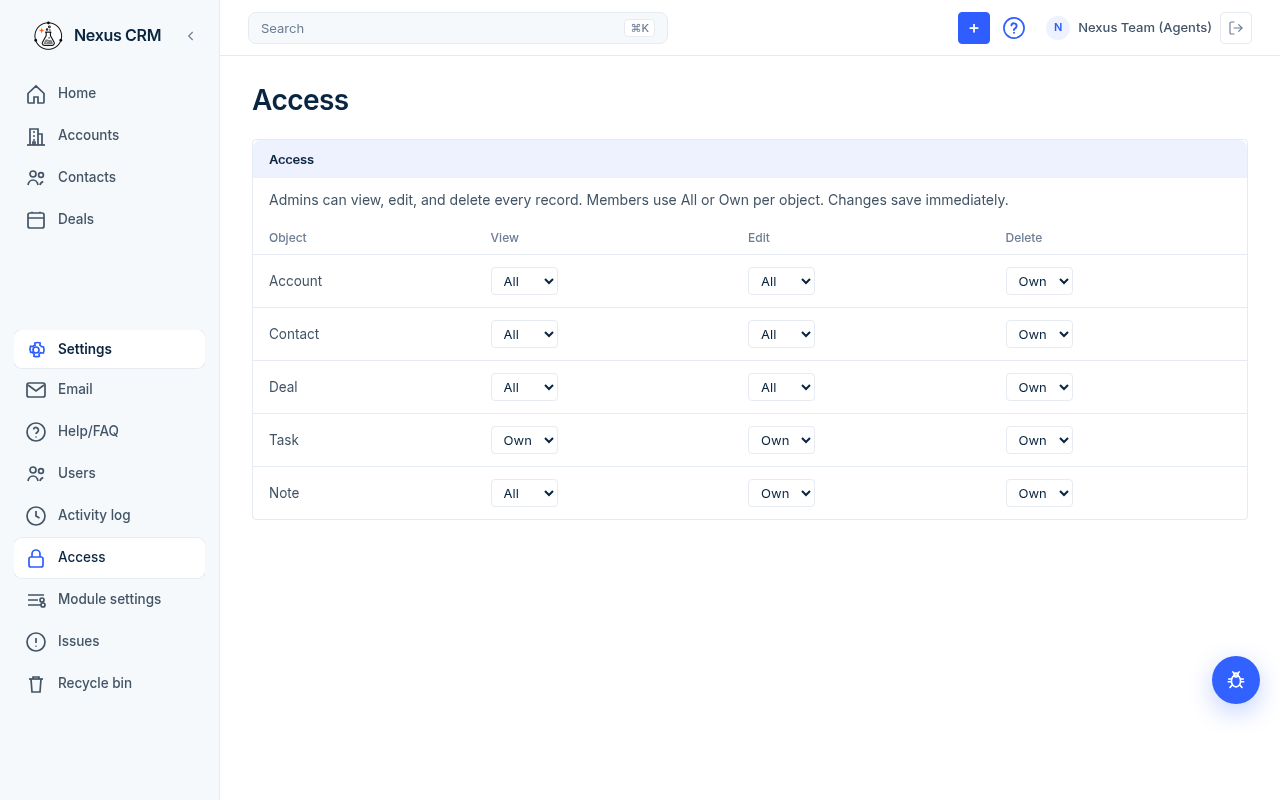
Access

Open Settings → Access.

Access settings
Access settings

The table lists Account, Contact, Deal, Task, and Note. For each one, pick All or Own under View, Edit, and Delete. Changes save immediately. These choices apply to members only; admins can always do everything.

Module settings

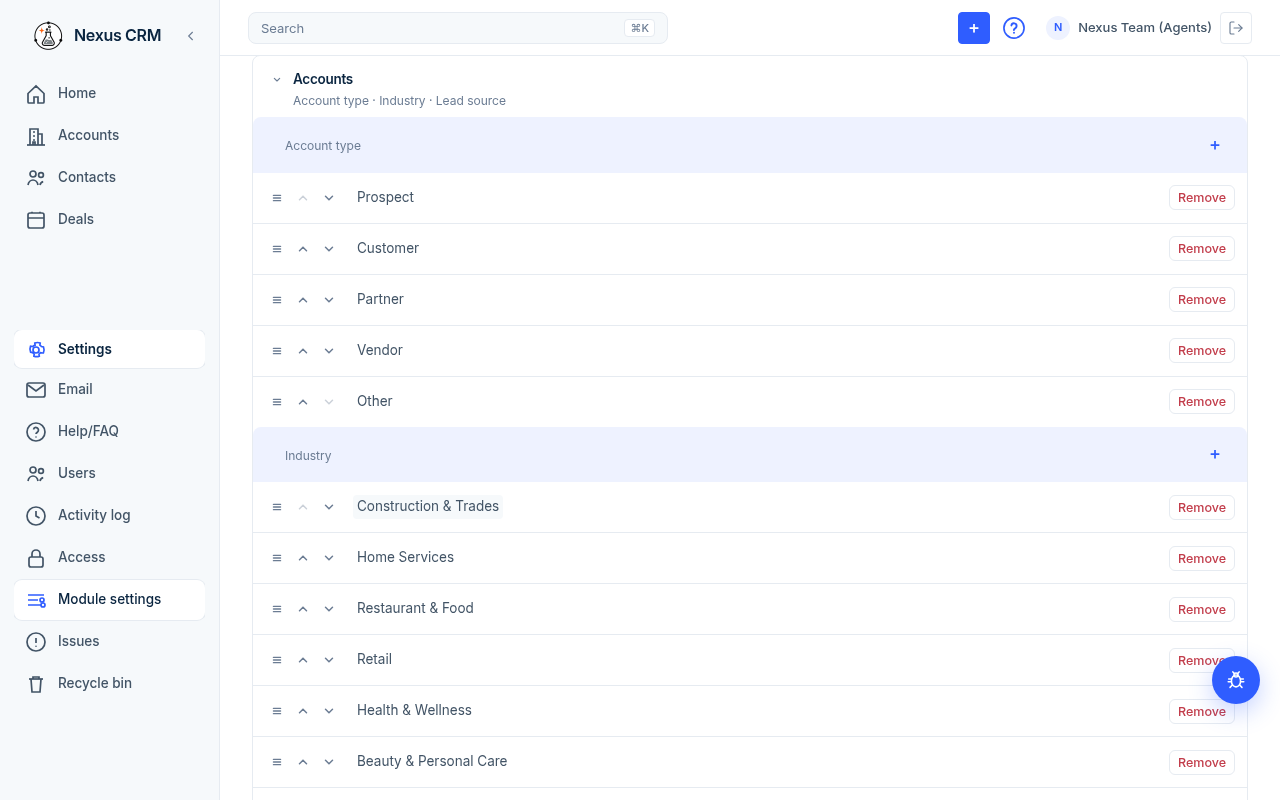
Open Settings → Module settings. The page has these sections:

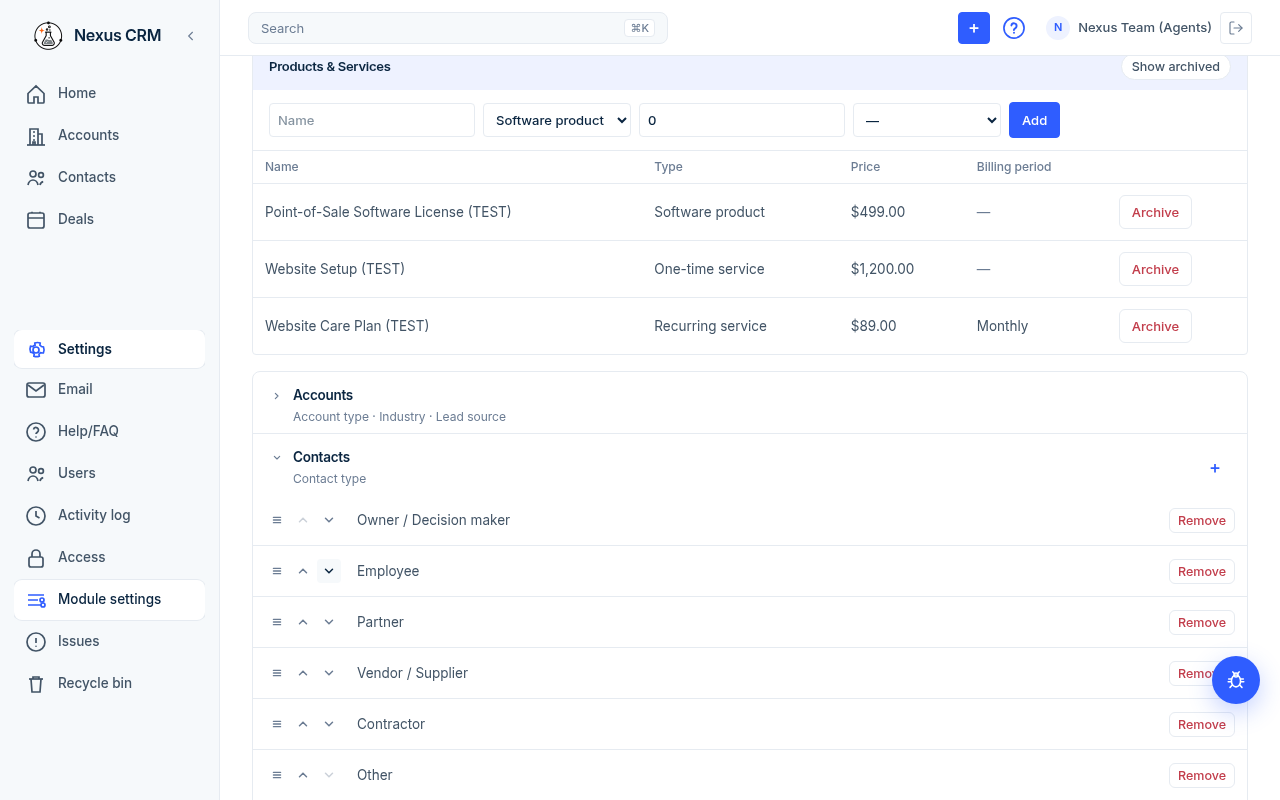
  • Products & Services at the top. To follow: see Products and services.
  • Accounts: Account type, Industry, and Lead source lists.
  • Contacts: the Contact type list.
  • Deals: Deal stages and Deal contact roles. To follow: see Deals.
Module settings with the Accounts section open

The sections start closed. Click a section name (for example Accounts) to open it.

### Edit a list

  • Add a value: click + next to the list name, type the value, then click the check mark (or press Enter).
  • Rename: click the value, change it, then click the check mark.
  • Reorder: drag the ≡ handle, or click the up and down arrows.
  • Remove: click Remove on that row.
Contact type list
Contact type list

These lists fill the drop-downs on accounts and contacts, such as Account type and Type.

Activity log

Open Settings → Activity log (admins only). It lists sign-ins, adds, edits, and deletes from the last 90 days. Older activity is removed.

Activity log
Activity log
  • Columns: User, Activity, When. Sign-ins read Signed in.
  • Filter with User and When (Today, This week, This month).
  • Click Refresh to load the newest rows.

Issues

Open Settings → Issues. It lists bugs and feedback sent with the bug button (see Find your way around).

It loads open issues from GITHUB_ISSUES_REPO (default Daryl11/nexus). A repository whose name is the previous product is refused. The token is fine-grained: Issues read and write, and no Contents. Screenshots are stored in the private Supabase record-files bucket and open in Nexus for signed-in admins.

Issues page
Issues page
  • Filter with State (Open, Closed, All), Label, and Reporter.
  • Click Refresh to reload.
  • Admins can open a row to Comment, Close, or Reopen.

Recycle bin

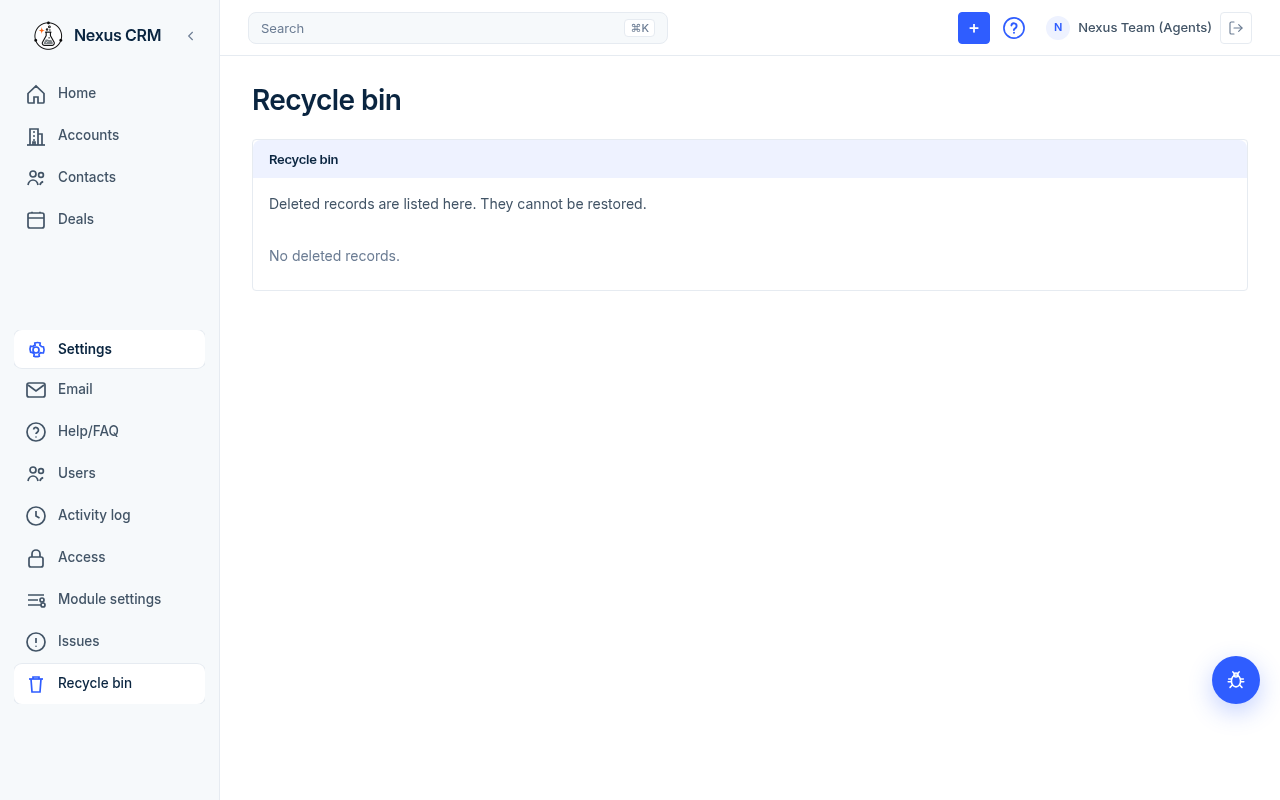
Open Settings → Recycle bin.

Recycle bin
Recycle bin

Deleted records are listed here with Name, Object, and Deleted (the date). They cannot be restored. An empty list says "No deleted records."

Help/FAQ

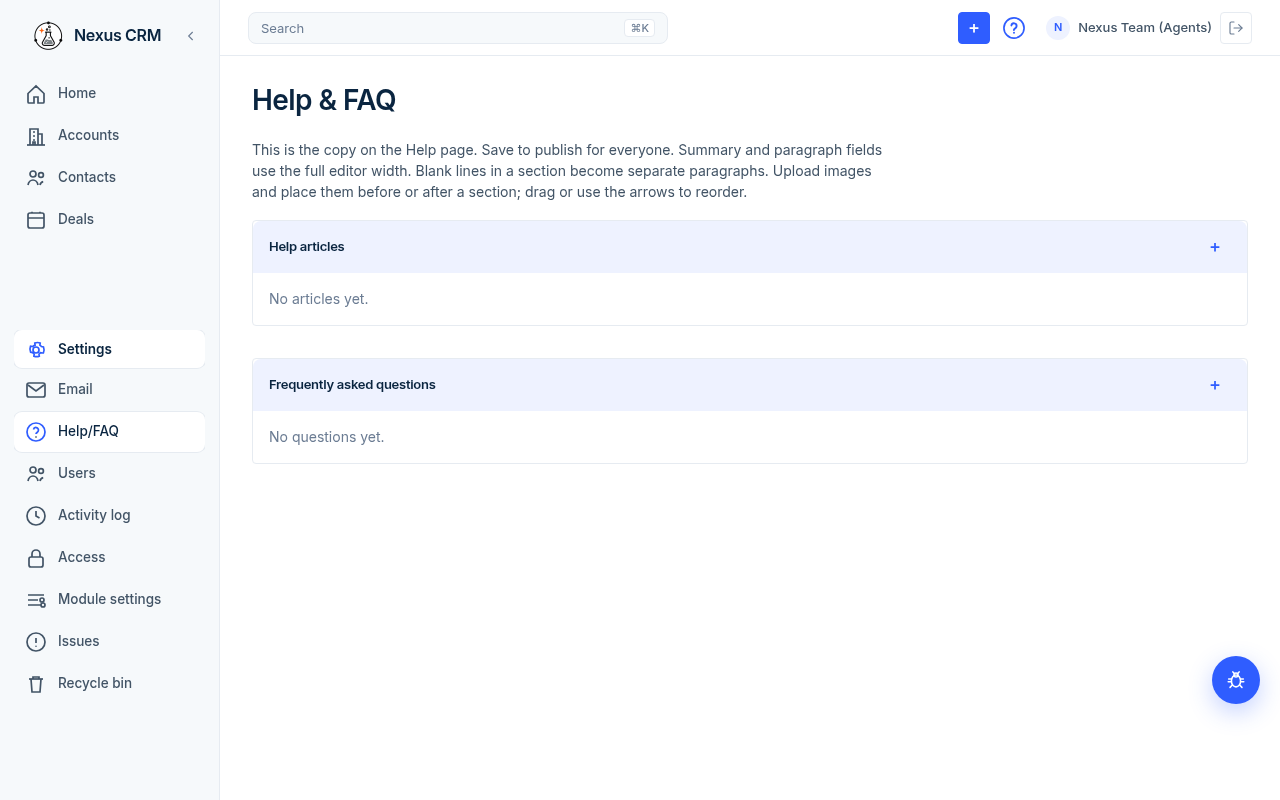
Admins open Settings → Help/FAQ (the page title is Help & FAQ) to edit what everyone sees on the Help page.

Help & FAQ editor
Help & FAQ editor
  • Click + on Help articles to add an article.
  • Click + on Frequently asked questions to add a question.
  • Save to publish for everyone.

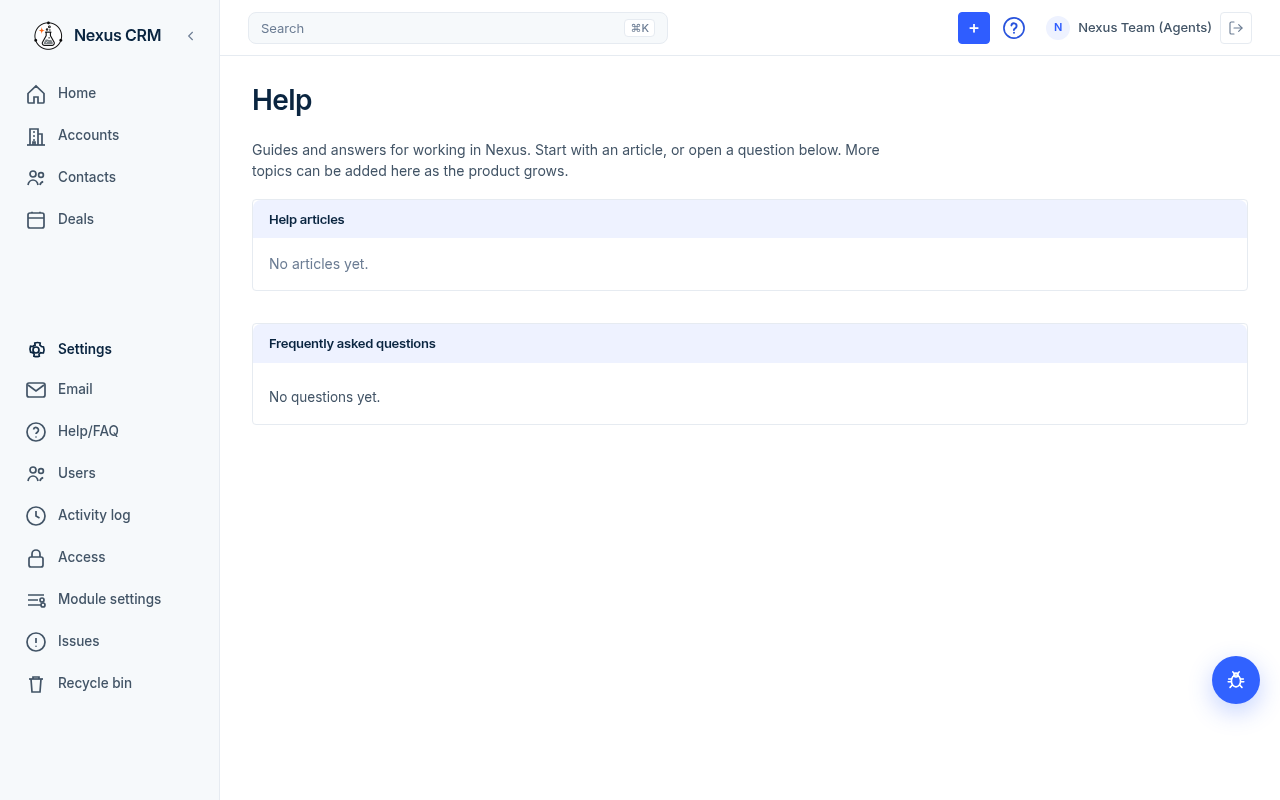
Everyone reads these from the ? button in the top bar.

Help page
Help page

Email

Settings → Email is where you connect Gmail, see the mailboxes you have connected, and choose Sync now for replies. The same block is on your profile. See Email.

Loading…