Accounts
Contacts
Deals

Help

Notes, tasks, meetings, and files

How to log notes, tasks, meetings, and files, and read the Activity card.

Overview

This article covers the ways to log work in Nexus: notes, tasks, meetings, and files. It also explains the Activity card on each record.

KindUse it forWhere it shows
NoteA written message about an account, contact, or deal.The record's Notes and Activity cards.
TaskA to-do with an optional due date.Upcoming tasks on Home.
MeetingA record that you met, by In person, Phone, or Video.The account's Activity and Meetings chart, plus the contact's Activity if you pick a contact.
FileA document attached to an account or contact.The record's Files card.
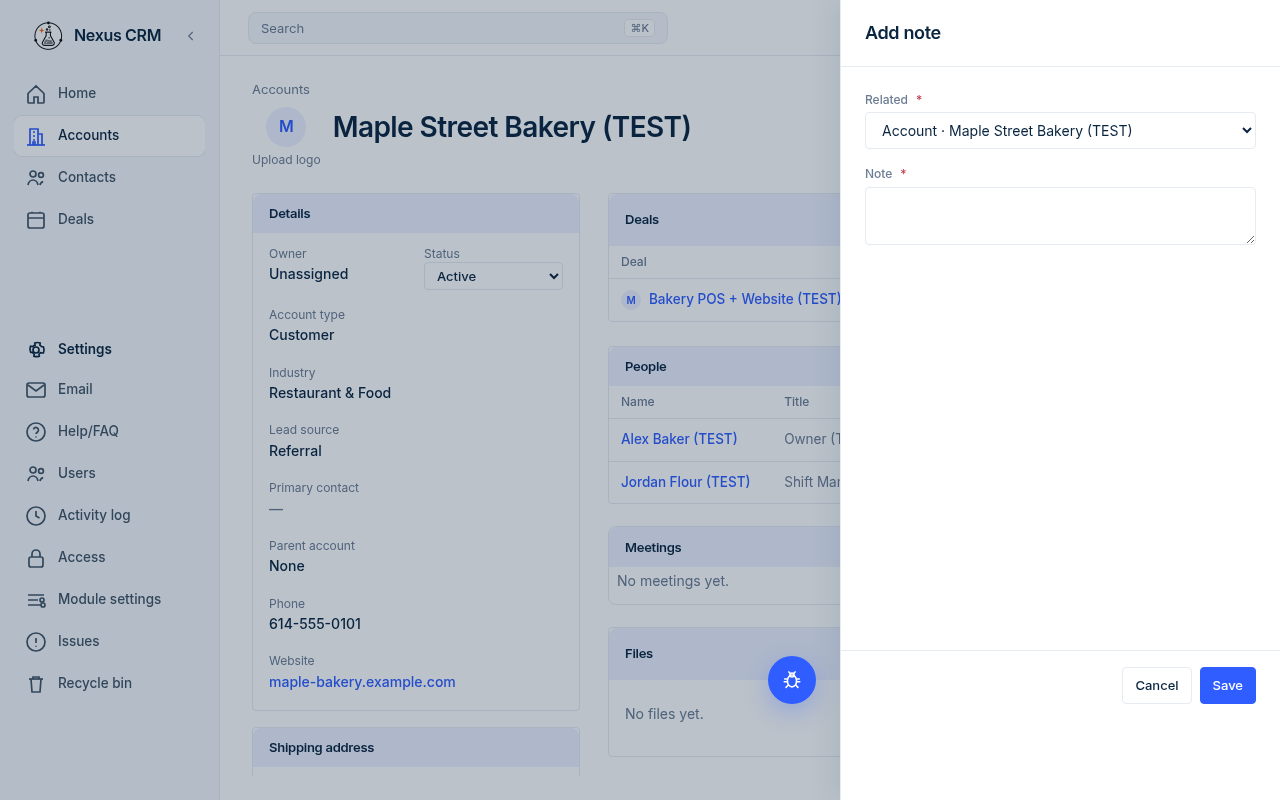
Add note panel
Add note panel

Add a note

  1. Open the account, contact, or deal the note is about. (This step is optional but saves time.)
  2. Click + in the top bar, then Note. You can also click + on the Notes card.
  3. Check Related. It shows the record you had open, such as Account · Acme Sample Co (TEST). Pick another record if needed.
  4. Type your message in Note.
  5. Click Save.
FieldWhat to enterExampleRequired?
RelatedThe account, contact, or deal the note is about.Account · Acme Sample Co (TEST)Yes
NoteYour message.Called to confirm the (TEST) visit.Yes

The note appears on that record's Notes and Activity cards with your name and the date.

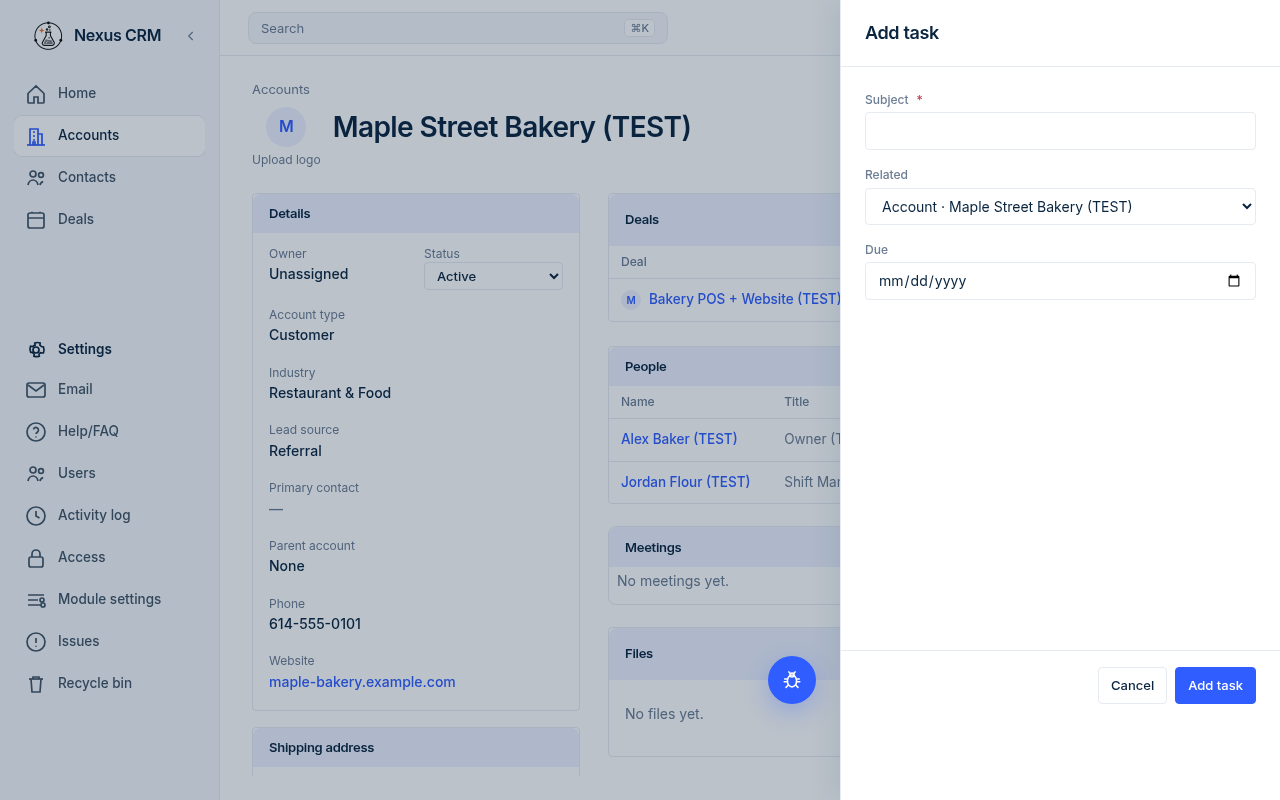
Add task panel
Add task panel

Add a task

  1. Click + in the top bar, then Task.
  2. Fill in Subject.
  3. Optional: pick a record in Related and a date in Due.
  4. Click Add task.
FieldWhat to enterExampleRequired?
SubjectWhat needs to be done.Send price sheet (TEST)Yes
RelatedThe account or contact it is for.Account · Acme Sample Co (TEST)No
DueThe due date.10/15/2026No

New tasks start as not done and are owned by you. They show on Home under Upcoming tasks, and they count in Open tasks and Due this week. Nexus does not yet have a screen to edit a task or mark it done.

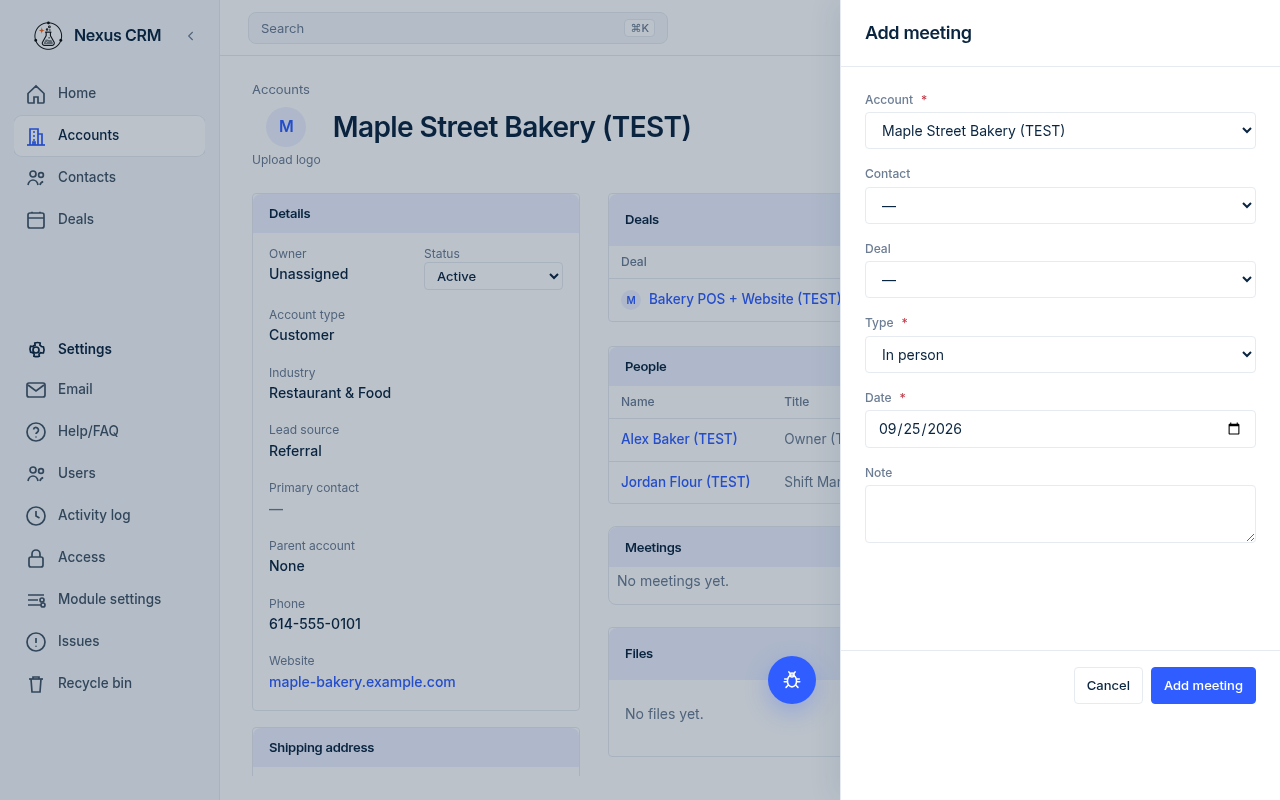
Add meeting panel
Add meeting panel

Add a meeting

  1. Click + in the top bar, then Meeting.
  2. Pick the Account.
  3. Optional: pick a Contact you met.
  4. Pick the Type: In person, Phone, or Video.
  5. Check the Date. It starts as today.
  6. Optional: add a Note about the meeting.
  7. Click Add meeting.
FieldWhat to enterExampleRequired?
AccountThe account you met with.Acme Sample Co (TEST)Yes
ContactThe person you met.Jane Sample (TEST)No
DealTo follow: see Deals.—No
TypeHow you met.PhoneYes
DateWhen you met.09/25/2026Yes
NoteWhat you talked about.Reviewed the (TEST) schedule.No

Where a meeting shows:

  • Always on the account's Activity card and Meetings chart.
  • On the contact's Activity card if you picked a Contact.
  • On Home in the Meetings chart and the Last meeting column of Last contacts.

Email

Email on a contact, account, or deal opens compose and sends through a Gmail account you connected. See Email.

Nexus logs that message on each contact whose address is in To or Cc, on that contact's account, and on the deal when you sent it from the deal. A reply on that thread, or inbound mail whose From matches a contact, shows on the same contact and account as Reply. If the thread started on a deal, the reply is on that deal too.

The Activity card

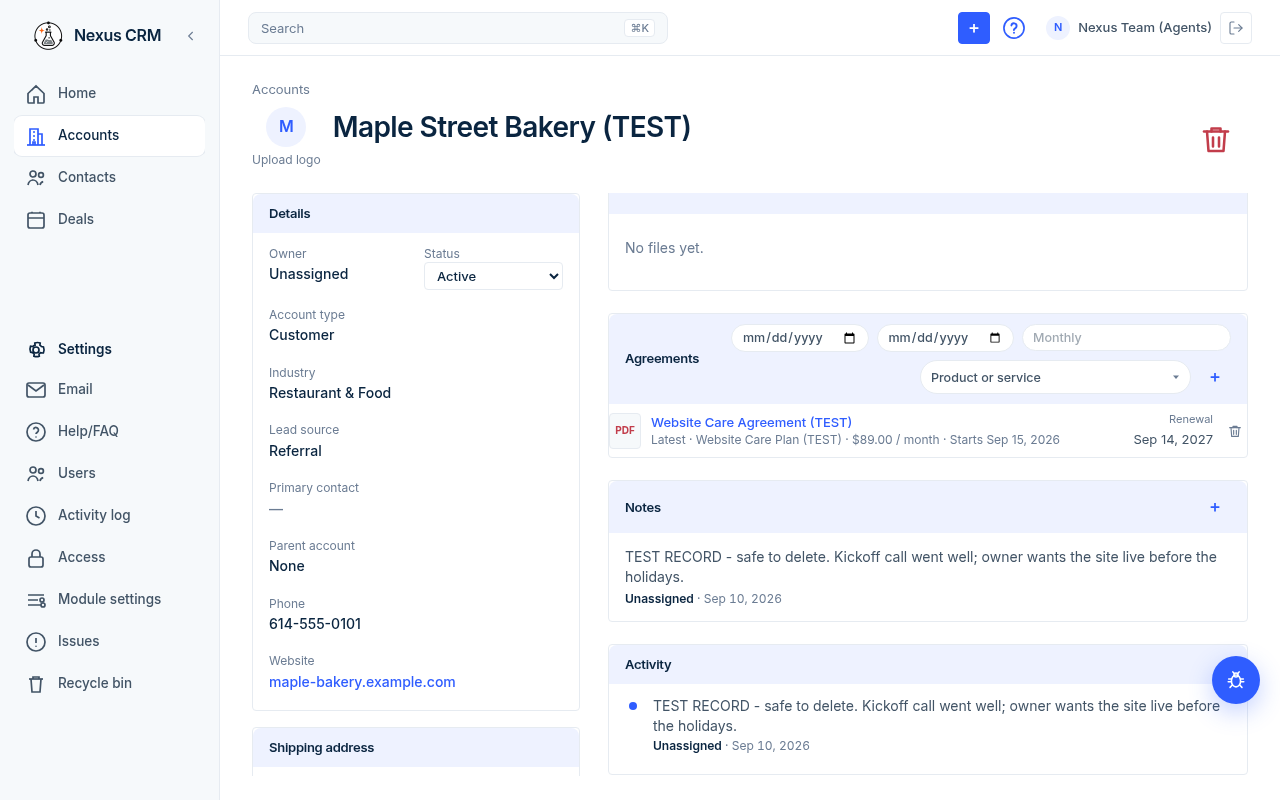
Every account, contact, and deal has an Activity card. It lists notes, meetings, and email, newest first.

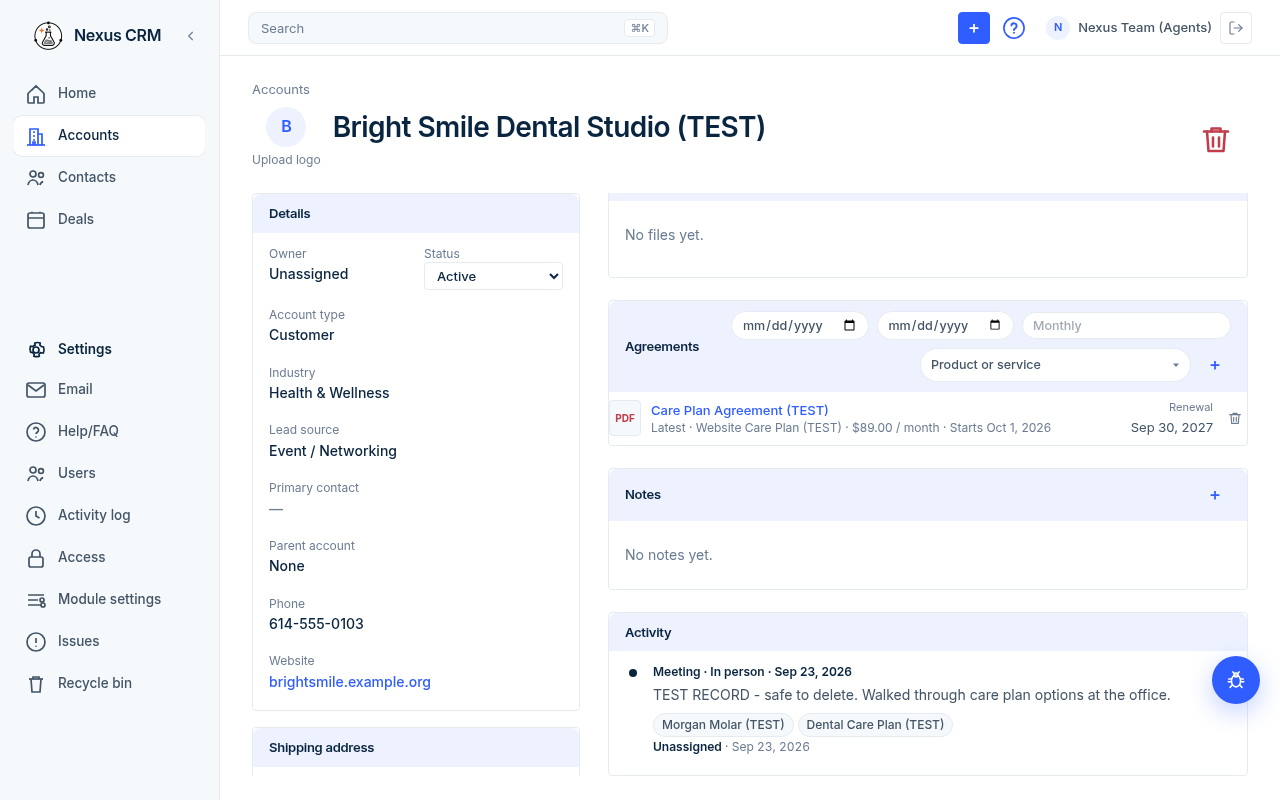
Activity card with a meeting
  • A meeting reads Meeting · type · date, followed by the note and tags for the contact it was with.
  • Under each item you see who added it and when.
  • An empty card says "No activity yet."
Files, Agreements, Notes, and Activity on an account

Files

  1. Open an account or contact.
  2. On the Files card, click + (Add file).
  3. Pick a file from your computer.

Allowed files: PDF, images (PNG, JPEG, GIF, WebP), text and CSV, Word, Excel, and PowerPoint. Each file can be up to 10 MB. Larger files show "Files must be 10 MB or smaller."

Click a file name to open it. Click the trash icon to remove it. An empty card says "No files yet."

Who can add or see what

Admins can do everything. For members, Settings → Access sets whether they can view, edit, and delete All tasks and notes or only their Own. See Settings and users.

Loading…